First Double Click on the My Computer Icon on the desktop.
Hard Drive List
Drive C: is the drive that we want to set up sharing on so right click on the C: drive and select Sharing and Security from the puldown menu.
Sharing Tab
Make sure that you are on the sharing tab.
If you are on the Sharing Tab and you have never shared this drive in the past, you will see the link below it. Please click on that link to open up the Sharing Settings.
Network Sharing and Security Box
On This screen, we are only concerned with this section of the screen since we are about to share the entire C: Drive.
Share this folder on the network check
This box MUST be Checked
Shared Name
This should be set to C and thats it.
Allow network users to change my files check
This box MUST be Checked
Apply button
When finished with the above settings, press apply. your computer will do some file sharing and then you are done setting up the sharing on this computer.


 Drive C: is the drive that we want to set up sharing on so right click on the C: drive and select Sharing and Security from the puldown menu.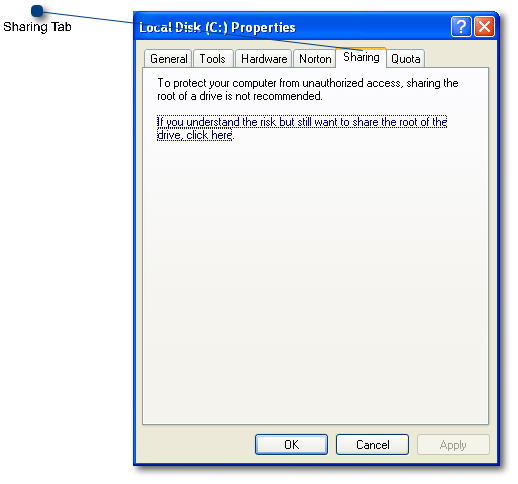
 Make sure that you are on the sharing tab.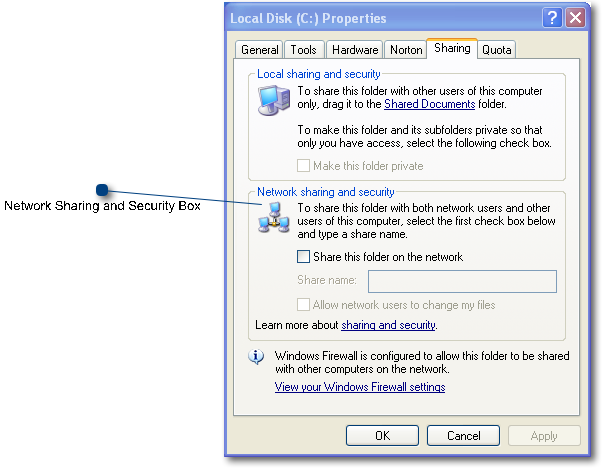
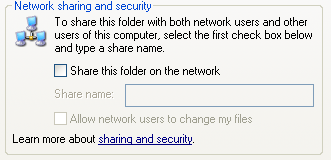 On This screen, we are only concerned with this section of the screen since we are about to share the entire C: Drive.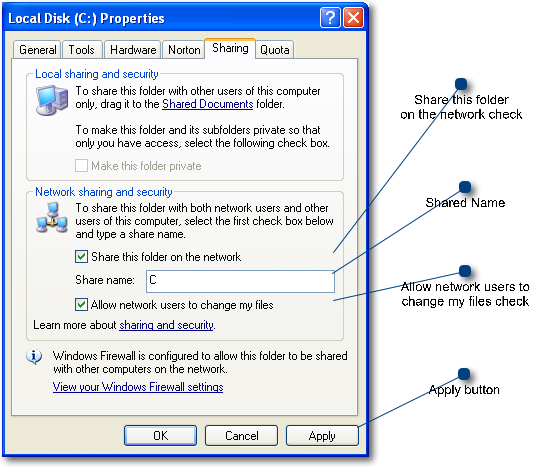
 This box MUST be Checked
 This should be set to C and thats it.
 This box MUST be Checked
 When finished with the above settings, press apply. your computer will do some file sharing and then you are done setting up the sharing on this computer.